
Online content management
Serviio supports the viewing of public online content, in the form of RSS/Atom feeds, live streams and other web resources. As there are a lot of web sites that publish their media feeds it is relatively easy to get the content on your device via Serviio.
There is no one-eat-all solution to add online content from a website to Serviio. You will have to
- get a feed URL, if the website publishes one (and possibly install a related plugin, e.g. YouTube)
- or install a web resource plugin (if there is one available for your preferred web site) and follow the plugin's documentation for adding content URLs
- or get a live stream URL, that is the URL of the actual audio/video stream, not a website URL that has a video player on it
For examples of interesting online content head to the forums.
Supported content
Online feeds
Online feeds can include links to image, audio or video files. In the case of image and audio files, it is usually easy for Serviio to get this content, because the actual files are linked in the feed. In the case of video files, some web sites provide feeds with media links, most of them will publish feeds linking to a page with a video player though (e.g. YouTube). In that case you will have to install a plugin (if it's available).
Note: Only static online content is supported in feeds. If you have a feed including live streams do not use that otherwise you are facing running out of disk space.
Live streams
Serviio supports live audio and video streams. These can be internet radio stations, SHOUTCast streams, live TV station broadcasts and similar. Supported protocols include http, mmsh, mmst, rtp, rtsp, apple http.
A typical stream URL might look like:
- http://someserver/stream
- mms://123.123.123.123/
- rtsp://somedomain.com/content
The live stream URL has to be the URL of the actual audio/video media stream, not the website that holds an embedded player showing the stream. For those case you will need a plugin (if available).
Note: You can make sure the stream URL is correct by trying to play it in a desktop player, like VLC.
You can also stream your PC desktop via this functionality, with the help of VLC or similar software that can produce your desktop stream. More information is on the wiki.
Web resources
Most of the time web content is not offered in the form of feeds. This type of resource includes any online content that is available in a non-structured feed (e.g. audio/video streaming websites) and requires a special Web resource plugin. Depending on the plugin implementation it will enable you to access any online content from a web site or any arbitrary URL.
Online resource plugins
Online resource plugins are simple programs written in Groovy language. Their only use is to parse provided feed URLs (those relevant to the plugin's online resource) and work out where the online files are stored.
NOTE: Plugins by themselves do not offer any online content, you still have to tell Serviio the feed URL.
Once copied to the Serviio's plugins directory, the plugin is registered and related resources can be indexed for Serviio to play. To register a new plugin with Serviio you have to copy the plugin file (.groovy) to Serviio's plugins directory. This directory is located under Serviio's installation directory.
You can also provide plugins.location system property to Serviio server which must point to a location that includes 'plugins' folder, in a case you would like to store the plugins elsewhere.
We very much encourage developers to write plugins for new web resources. To help you there is a simple guide on how to write plugins.
Serviio is not distributed with any plugins, please go to the forums to get your copy, request a new one or contribute your own.
Adding online resources to the library
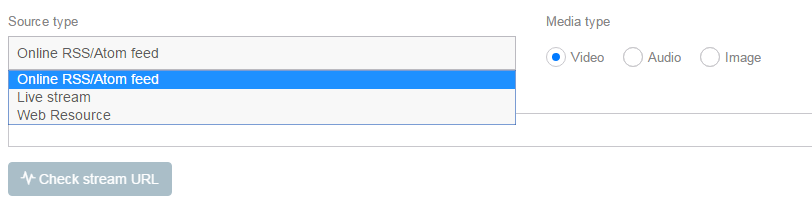
To add online content to your Serviio library, open the console and select Library / Online sources in the menu. Click Add button and select the Source Type (feed, live stream, web resource). Make sure to get this right otherwise your content will not appear or will not play correctly.
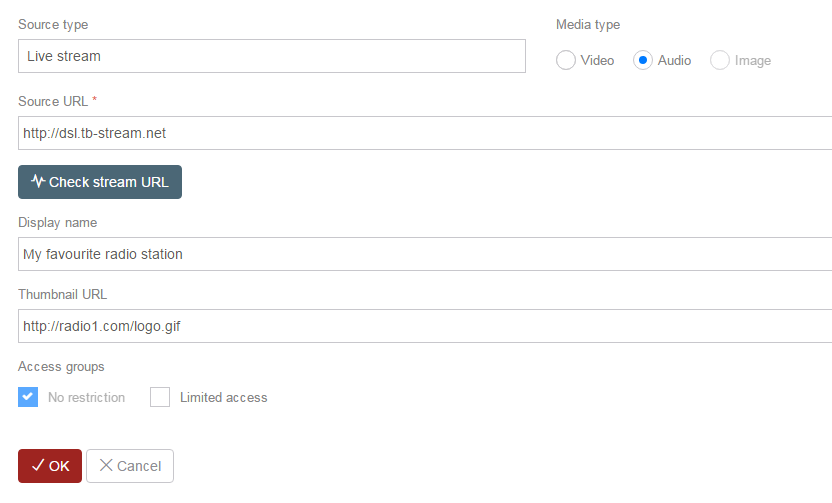
Now enter Source URL, and type of media the resource provides. You can optionally enter Display name (value showed on the device when browsing, defaults to either feed name or source URL) and Thumbnail URL (only available for live streams, includes address of an image you want to see when browsing the live stream on your device).
The easier option is to use a ServiioLink, which will prefill all the above fields for you.
Another option is to import online resource file (as previously exported by clicking the Export button). That will add resources from the export .sob file to your Console.
It may take a few minutes (depending on your internet speed and number of items in the resource) before you can play the content.
Some interesting online content is referenced in the forum.
Available online content usually changes with time, including new content every hour/day/month/etc. That's why Serviio doesn't store the information in its database and why after a restart it will retrieve that feed information again. You can also set the feed cache expiry interval in the console which defines time after which Serviio parses the resource again and checks it for any changes. Alternatively you can force refreshing each individual source.